How to Create a QR Code for Your Business Card
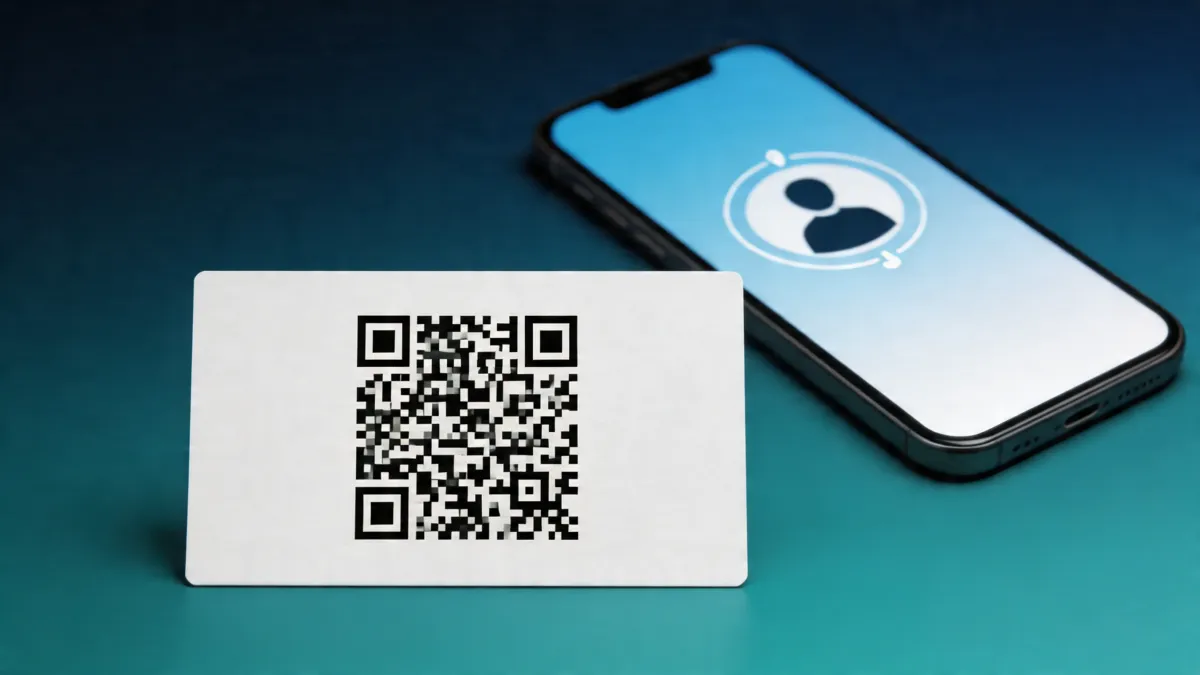
Key Takeaways
- A QR code on your business card lets anyone open your full digital profile instantly by scanning with their phone camera
- MagicLink generates a QR code automatically for every page you create — no third-party tools needed
- QR codes work on printed cards, presentations, signage, email signatures, and packaging
- Good QR code design means sufficient size, contrast, and a clear call-to-action next to it
- Unlike a static printed card, the profile behind your QR code can be updated anytime without reprinting
What Is a QR Code and Why Does It Matter for Business Cards?
A QR code (Quick Response code) is a two-dimensional barcode that stores information — in this case, a URL. When someone points their phone camera at a QR code, it instantly opens the linked page in their browser. No app download required. No manual typing.
For business cards, QR codes solve a fundamental problem: paper cards carry limited information and go out of date. A QR code bridges the physical and digital worlds. You hand someone a card, they scan the code, and they land on a profile page with your full contact details, social links, portfolio, and more.
This is why QR codes have become standard on modern business cards. They turn a static piece of paper into a gateway to a living, always-updated digital profile.
Why You Should Add a QR Code to Your Business Card
Instant access to your full profile
A traditional business card fits a name, title, phone number, and maybe a website. A QR code links to a complete digital profile — social media accounts, a bio, portfolio links, a "Save Contact" button, and anything else you want to share. No character limits.
No manual data entry
How often do you manually type someone's phone number or email from a card? QR codes eliminate this entirely. One scan and the recipient has everything. With platforms like MagicLink, they can even tap "Save Contact" to add your details directly to their phone's address book.
Always current information
Changed jobs? New phone number? Updated your LinkedIn? If your QR code points to a digital profile (not a static vCard), you update the profile once and the QR code stays the same. Everyone who scans it — whether today or six months from now — sees the latest version.
Trackable
With a Pro plan on MagicLink ($1.17/month), you get analytics showing how many times your QR code was scanned, when, and from where. Paper cards can't tell you whether anyone ever looked at them.
How to Create a QR Code with MagicLink
MagicLink generates a QR code automatically for every page you create. Here's how to get started:
Step 1: Create your MagicLink page
Sign up at magiclink.az and create a new page. Add your name, photo, job title, contact information, social links, and any buttons you want. Customize the design with colors, fonts, and layout options.
Step 2: Get your QR code
Once your page is live, MagicLink automatically generates a QR code for it. You can find it in your page's share options. The QR code points directly to your page URL.
Step 3: Download and use
Download the QR code image and add it to your printed business card design, presentation slides, email signature, or any other material.
That's it. No third-party QR code generators. No expiring links. No complicated setup.
Where to Use Your QR Code
QR codes are incredibly versatile. Here are the most effective places to put yours:
Printed business cards
The most obvious use. Add the QR code to the back of your card (or a corner of the front) so recipients can scan it to save your full digital profile. This is especially useful at networking events and conferences where people collect dozens of cards.
Presentations and slide decks
Put your QR code on the last slide of a presentation. Audience members can scan it to connect with you without having to approach you after the talk. This works for conference presentations, webinars, sales pitches, and training sessions.
Event badges and lanyards
Print your QR code on your conference badge. Instead of fumbling for a card, just point to your badge. Some event organizers now include QR codes on attendee badges by default.
Email signatures
Add a small QR code to your email signature. While recipients already have your email, the QR code gives them quick access to all your other contact details and social profiles.
Signage and posters
Retail stores, offices, and restaurants can display QR codes linking to the business's digital profile. Customers scan to find contact details, social media, hours, or special offers.
Packaging and product inserts
If you sell physical products, a QR code on the packaging or inside the box links customers to your profile, support contact, or social accounts.
Resumes and CVs
Add a QR code to your printed resume linking to your MagicLink page. Recruiters get instant access to your portfolio, social profiles, and a way to save your contact information.
Best Practices for QR Code Design and Placement
Not all QR codes are created equal. Follow these guidelines to make sure yours actually gets scanned:
Size matters
A QR code needs to be at least 2 cm x 2 cm (about 0.8 x 0.8 inches) to scan reliably. On a standard business card, aim for at least 2.5 cm. Bigger is better — especially for signage viewed from a distance.
Contrast is critical
QR codes work best with dark modules on a light background. Black on white is the safest choice. If you use brand colors, ensure strong contrast. Never place a QR code on a busy photographic background.
Add a call-to-action
A bare QR code without context gets fewer scans. Add a short label like "Scan to connect," "View my profile," or "Save my contact." People need to know what happens when they scan.
Don't crowd it
Leave white space (quiet zone) around the QR code. If other design elements are too close, scanners may not recognize the code. Most standards recommend at least a 4-module-wide quiet zone on all sides.
Test before printing
Always test your QR code with multiple phone cameras before sending anything to print. Test in different lighting conditions and at the size it will actually appear on the final product.
Keep the destination mobile-friendly
Your QR code will almost always be scanned on a phone. Make sure the page it links to is fully responsive and mobile-optimized. MagicLink pages are mobile-first by design, so this is handled automatically.
QR Codes vs. Other Sharing Methods
QR codes aren't the only way to share your digital business card. Here's how they compare:
| Method | Best For | Limitation |
|---|---|---|
| QR code | Print materials, in-person meetings, signage | Requires camera/scanner |
| Direct link | Email, messaging, social media | Requires typing or clicking |
| NFC card | Quick in-person sharing | Requires physical card |
| Apple & Google Wallet card | Always in your phone | Requires initial setup |
The smart approach is to combine methods. Use a QR code on printed materials, share your link digitally, keep an NFC card for in-person meetings, and add your profile to Apple & Google Wallet for instant access. MagicLink supports all of these.
Common Mistakes to Avoid
Using a generic QR code generator with tracking links that expire. Free QR code tools often create links that stop working after a trial period. MagicLink's built-in QR code points directly to your page — it works as long as your page exists.
Making the QR code too small. If people can't scan it, it's useless. Always err on the side of larger.
Pointing to a page that isn't mobile-optimized. If someone scans your QR code and lands on a page that doesn't work well on their phone, you've lost them.
Forgetting to update the linked profile. The whole point of a QR code linking to a digital profile is that you can keep it current. Don't set it and forget it — keep your information fresh.
Get Started
Creating a QR code for your business card takes less than five minutes with MagicLink. Sign up, build your page, and your QR code is ready to download and use anywhere.